Return to the previous app
Swipe right with three fingers to return to the app you were just using. Swipe left to open another window in the current app. No keyboard shortcuts to remember.
Swipe FX
Swipe right with three fingers to return to the previous app. Swipe left to open another window in the current app.
Press the Mission Control key to take a screenshot, like PrintScr on Windows.
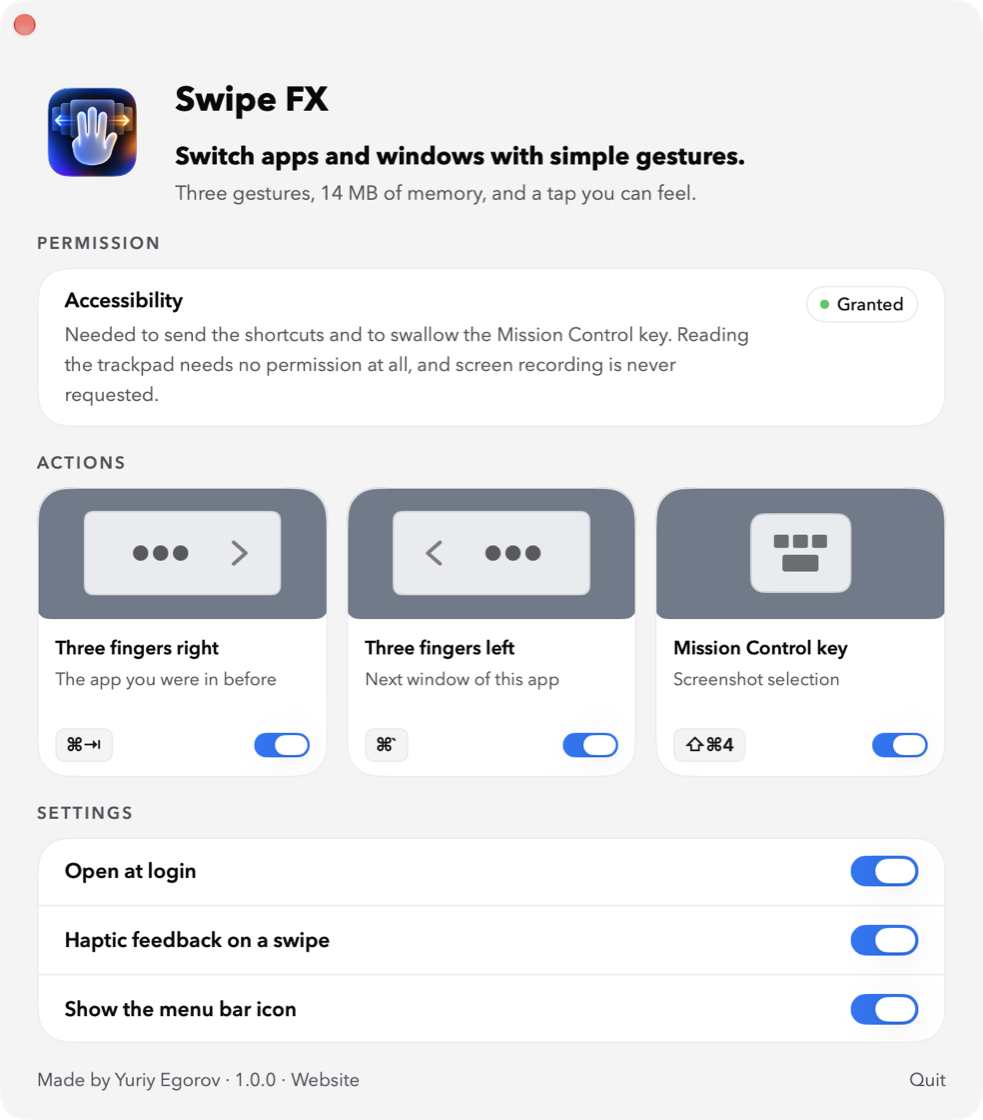
Swipe right with three fingers to return to the app you were just using. Swipe left to open another window in the current app. No keyboard shortcuts to remember.
Swipe FX uses 14 MB of memory and barely touches system resources. It does three things without dozens of settings.
Press the Mission Control key to take a screenshot, like PrintScr on Windows.
The trackpad gives every gesture a satisfying haptic response.
Swipe FX doesn't read what you type.
Swipe FX responds only to the Mission Control key. It doesn't read or save anything you type, connect to the internet, or request screen-recording access. Trackpad gestures need no extra permission. Accessibility is used only for Swipe FX's three actions.
A .dmg for macOS 15 and later. Tested on macOS 27.
Open the .dmg and drag Swipe FX into Applications.
Launch Swipe FX. macOS may block the first launch because the app isn't signed by Apple yet. Open System Settings → Privacy & Security, scroll down, and click Open Anyway.
If the app still doesn't open, launch Terminal and paste this command.
xattr -dr com.apple.quarantine "/Applications/Swipe FX.app"Then turn on Swipe FX under System Settings → Privacy & Security → Accessibility. You can check the permission or open Settings from the Swipe FX window.
To switch apps and windows and take screenshots. Swipe FX doesn't get access to your screen, files, or anything you type. Trackpad gestures need no extra permission.
Swipe FX isn't signed by Apple yet, so macOS may block it the first time. Open System Settings → Privacy & Security, scroll down, and click Open Anyway. If macOS blocks it again, copy the xattr command from the installation section.
No. Swipe FX only uses left and right swipes, so the system's up and down gestures keep working.
No. Custom shortcuts would turn Swipe FX into another complicated utility. It has three ready-made actions with minimal system overhead. You can turn each one on or off.

Like it? Buy me a coffee